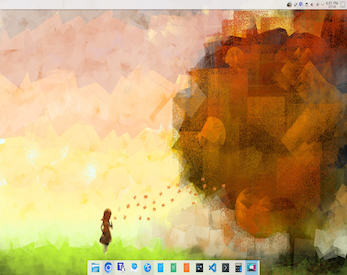
Running NixOS full screen on WSL2







Published on 26 March 2026 by Andrew Owen (7 minutes)
It’s not that I hate Windows. I think Windows 11 ARM (before co-pilot was embedded in the OS) was pretty reasonable, provided you ran it in a VM. I think it’s that Windows hates me. I’ve always found running Windows natively on Intel hardware a painful experience. Back in my video games industry days, I built the only PC I’ve ever owned. It started out as a Hackintosh project, but it never reliably ran macOS. It was all top spec hardware. Apparently, PC graphics cards are consumable items (it burned itself out and had to be replaced). It was running Windows 10. Over time, it reported more and more hardware issues, that I’m pretty sure were just the OS corrupting itself (as evidenced by the issues going away after a clean install).
I’m also just not as productive on Windows. It’s not how I’m comfortable working. And I know there’s a way to do whatever you want in PowerShell. But what I’m familiar with is the UNIX user land. So if I can’t have a Mac (because the company I work for is too small to get any kind of discount from Apple), and if the IT department can’t support Linux (which is entirely reasonable for any company that didn’t start out using Linux), then I have to make Windows work for me. And the way to do that is by running the Windows Subsystem for Linux (WSL).
WSL works by translating Linux system calls into Windows system calls, enabling Linux binaries of the same architecture (x64 or ARM) to run natively on Windows. The original version of WSL was limited in various ways. WSL2 enables you to run just about any Linux software, including a full desktop and native Docker containers. Microsoft’s preferred Linux distribution is Ubuntu. But I’ve had Ubuntu brick itself on a VM before, and Canonical Ltd is a cult (honestly held opinion). Debian, Kali and OpenSUSE are also officially supported, but there is also unofficial NixOS support.
What makes NixOS a good candidate for WSL is that it uses a declarative configuration model. The entire system is defined in a single file. Providing you store your data outside the native fie system (preferably in some form of secure cloud storage), if the system ever becomes unstable you can just reinstall, update the configuration file and get back to a working system. This is particularly handy if you’re on the hook for your own user support.
With Linux, you have multiple options for desktop environments. I’ve been a Mac user since 1993, and I was an Atari ST user before that. I like a top menu bar and I’ve also got used to the dock. But I’m not a fan of the current macOS 26 desktop experience. I don’t see what was wrong with skeuomorphism (the current iOS email, FaceTime and phone icons are still skeuomorphic). My current favorite graphical environment is iOS 26, because it’s a touch-driven OS that works well with an external trackpad and keyboard. But on a traditional computer, I find KDE Plasma 6 good to work with. I’ve always had a slight preference for KDE over Gnome on Linux, going back to CentOS 4 (although I liked the Gnome Nimbus theme on Solaris).
Before you can install NixOS, you’ll need an administrator account and PowerShell scripts enabled (Get-Execution Policy to check the current state, then Set-ExecutionPolicy RemoteSigned to permit unsigned local scripts to run but to require downloaded scripts to be signed.)
Save this PowerShell script as certs.ps1 and then run it:
# Create a folder for exported certs
$ExportPath = "$env:USERPROFILE\certs"
New-Item -ItemType Directory -Force -Path $ExportPath | Out-Null

# Export all root CA certs to PEM format
Get-ChildItem -Path Cert:\LocalMachine\Root |
ForEachObject {
  $pem = "-----BEGIN CERTIFICATE-----`n" +
    [System.Convert]::ToBase64String($_.RawData, 'InsertLineBreaks') +
    "`n-----END CERTIFICATE-----`n"
  $fileName = ($_.Thumbprint + ".pem")
  Set-Content -Path (Join-Path $ExportPath $fileNAme) -Value $pem
}

Write-Host "Certificates exported to $ExportPath"
The certificates will now be in the path C:\users\<user.name>\certs.
wsl —install.nixos.wsl image from the NixOS-WSL releases page. When it has finished downloading, double-click the file to install it. If the installation is successful, you should see a NixOS command prompt.sudo cp -r /mnt/c/Users/<user.name>/certs /etc/nixos/certs.sudo nano /etc/nixos/configuration.nix.sudo nix-channel —-update to update the current channel.sudo nixos-rebuild switch to apply the configuration.wsl --shutdown. The RDP server won’t be available until NixOS reboots.Example configuration.nix:
{ config, lib, pkgs, ... }:

{
  security.pki.certificateFiles =
    builtins.map (name: ./certs/${name})
      (builtins.attrNames (builtins.readDir ./certs));

  imports = [
    <nixos-wsl/modules>
  ];

  wsl.enable = true;
  wsl.defaultUser = "nixos";

  system.stateVersion = "25.05";

services = {

  desktopManager.plasma6.enable = true;

  xrdp = {
    defaultWindowManager = "startplasma-x11";
    enable = true;
    openFirewall = true;
    port = 3390;
  };

  xserver = {
    enable = true;

    xkb = {
      layout = "us";
      variant = "";
    };
  };
};

nixpkgs.config.allowUnfree = true;

environment.systemPackages = with pkgs;
  [
    kdePackages.kcalc # Calculator
    kdePackages.kmail # Email
    kdePackages.kmail-account-wizard
    appimage-run # Run app images
    git # Git
    libreoffice-qt-fresh # Office
    nodejs_24 # node.js
    onedrive # OneDrive intergration
    teams-for-linux # MS Teams
    vivaldi # Browser
    vscode # IDE
    wget # File downloads
  ];

environment.sessionVariables = {
    DONT_PROMPT_WSL_INSTALL = "true";
  };
}
Although WSL2 supports Wayland (and X11), if you want to run a Linux desktop full screen (or across multiple screens) the easiest way is to use Remote Desktop (which uses the Remote Desktop Protocol). To sign in, you’ll need an account with a password. You can either add a password to the root user with passwd or create a new user.
When reconnecting to an existing session, if the lock screen is displayed you’ll need to enter your password again to resume the session.
NixOS provides a Search page where you can browse over 120,000 packages. There are multiple ways to install packages. Using the Vivaldi browser as an example:
nix-shell -p vivaldi.configuration.nix file with:
environment.systemPackages = [
pkgs.vivaldi
];nix profile add nixpkgs#vivaldi.nix-env -iA nixos.vivaldi.The latest NixOS package for WSL may not be the current version (at time of writing the WSL package is 25.05 and the latest version is 25.11). To upgrade you’ll need to modify your Nix channel list. For example:
sudo nix-channel --add https://nixos.org/channels/nixos-25.11 nixos
sudo nix-channel --add https://github.com/nix-community/NixOS-WSL/archive/ref/heads/main.tar.gz nixos-wsl
sudo nix-channel --update
sudo nixos-rebuild boot --upgrade.
Your remote destkop session will disconnect at some point and you won’t be able to connect again until you’ve fully restarted NixOs. From PowerShell enter:
wsl --shutdown
To upgrade to the latest packages:
sudo nix-channel --update \
sudo nixos-rebuild switch --upgrade
These instructions are for x64. If you want to run on ARM you’ll need to build your own WSL package using a different Linux distro. For example:
wsl --install -d Kali
cd ~
git clone https://github.com/nix-community/NixOS-WSL.git
cd NixOS-WSL
vim flake.nix
# change nixosConfigurations.default."x86_64-linux"
# to nixosConfiguration.default."aarch64-linux"
# save and exit
nix build .#nixosConfigurations.default.config.system.build.tarballBuilder
sudo ./result/bin/nixos-wsl-tarball-builder
cd /mnt/c/Users/<your-user>
cp ~/NixOS-WSL/nixos.wsl ./Downloads/
exit
wsl --install --from-file C:\Users\<user.name>\Downloads\nixos.wsl
# wait for install
# boot into nixos if it doesn't open automatically
# wsl -d NixOS
sudo nix-channel --update
sudo nixos-rebuild switch
Plasma 6 has seemingly limitless configuration possibilities (you can learn about them in the manual), but there are other desktop environments, such as Gnome. There are simpler ways to get a UNIX user land in Windows, such as Cygwin. There are Linux distributions that are better suited for normal users, such as OpenSUSE. There are other ways to run Linux VMs, such as VirutalBox. You should probably only try this out if you’re already a fan of NixOS (in which case you’ll already know how to change the desktop environment). But for me, this was an easier path than learning PowerShell.